Pre-work
The labs in the workshop are Jupyter notebooks. The notebooks can be run on your computer or remotely on the Google Colab service.
Running the Notebooks
Follow the instructions corresponding to how you want to run the notebooks:
Running the Notebooks Locally
It is recommended if you want to run the lab notebooks locally on your computer that you have:
If not, then it recommended to go to the Running the Notebooks Remotely (Colab) section instead.
Running the lab notebooks locally on your computer requires the following steps:
Local Prerequisites
- Git
- Python 3.11, 3.12, or 3.13
Installing Python
If you don't have Python installed, or the installed version is not one of the versions supported by this workshop, you should consider installing and using the uv tool to assist in installing the proper Python version.
uv works on macOS, Linux, and Windows.
Once uv is installed, you can install Python 3.13 with
uv python install --default 3.13
You can then update the shell configurations files to add the Python commands to the PATH.
uv python update-shell
Clone the Workshop Repository
Clone the workshop repo and cd into the repo directory.
git clone https://github.com/ibm-granite-community/docling-workshop.git
cd docling-workshop
Serving the Granite AI Models for locally run Notebooks
Some labs require Granite models to be served by an AI model runtime so that the models can be invoked or called. The following sections provide instructions to either run the models in the cloud using Replicate or locally using Ollama or LM Studio.
Notebook requirements
Lab 3. Multimodal RAG with Visual Grounding using Docling and Lab 4. Chunkless RAG with Docling both require either Replicate, Ollama, or LM Studio to serve the Granite AI models.
Replicate AI Cloud Platform
Replicate is a cloud platform that will host and serve AI models for you.
-
Create a Replicate account. You will need a GitHub account to do this.
-
Add credit to your Replicate Account (optional). To remove a barrier to entry to try the models on the Replicate platform, use this link to add a small amount of credit to your Replicate account.
-
Create a Replicate API Token.
-
Set your Replicate API Token as an environment variable in your terminal where you will run the notebook:
export REPLICATE_API_TOKEN=<your_replicate_api_token>
Local Model Inference with Ollama
If you want to run the AI models locally on your computer, you can use Ollama.
Ollama is a lightweight tool for running LLMs locally from the command line.
You will need to have a computer with:
- GPU processor
- At least 32GB RAM, preferably more
Tested system
This was tested on a MacBook with an M1 processor and 32GB RAM. It maybe possible to serve models with a CPU and less memory.
Apple Silicon
If you have a Mac with Apple Silicon (M1/M2/M3), Ollama can leverage the Metal GPU for accelerated inference.
If you computer is unable to serve the models, then it is recommended to go to the Replicate AI Cloud Platform section instead.
Running Ollama locally on your computer requires the following steps:
-
Download and install Ollama for your platform.
-
Pull the Granite model:
ollama pull granite4.2:8b ollama pull granite3.2-vision:2b -
Ollama runs automatically and exposes an OpenAI-compatible API at http://localhost:11434
-
Verify Ollama is running:
curl http://localhost:11434/v1/models
Local Model Inference with LM Studio
If you want to run the AI models locally on your computer, you can use LM Studio.
LM Studio is a desktop application for running LLMs locally with an OpenAI-compatible API.
You will need to have a computer with:
- GPU processor
- At least 32GB RAM, preferably more
Tested system
This was tested on a MacBook with an M1 processor and 32GB RAM. It maybe possible to serve models with a CPU and less memory.
Apple Silicon
If you have a Mac with Apple Silicon (M1/M2/M3), LM Studio can leverage the Metal GPU and MLX models for accelerated inference.
If you computer is unable to serve the models, then it is recommended to go to the Replicate AI Cloud Platform section instead.
Running LM Studio locally on your computer requires the following steps:
-
Download and install LM Studio for your platform
-
Download the Granite Vision model:
- Open LM Studio and go to the "Discover" tab
- Search for
granite-visionorgranite - Download a model (e.g.,
granite-vision-3.3-2b)
-
Start the local server:
- Go to the "Local Server" tab
- Select your downloaded model
- Click "Start Server"
- The server runs at
http://localhost:1234by default
-
Use in notebooks with the OpenAI-compatible endpoint:
%pip install langchain_openai

from langchain_openai import ChatOpenAI

model = ChatOpenAI(
    model_name="granite-vision-3.3-2b",
    api_key="none",
    base_url="http://localhost:1234/v1",
)
Install Jupyter
Use a virtual environment
Before installing dependencies and to avoid conflicts in your environment, it is advisable to use a virtual environment (venv).
-
Create virtual environment:
uv venv --clear --seed --python 3.13 venvpython3 -m venv --upgrade-deps --clear venv -
Activate the virtual environment by running:
source venv/bin/activate -
Install Jupyter notebook in the virtual environment:
uv pip install notebook ipywidgetspython3 -m pip install --require-virtualenv notebook ipywidgetsFor more information, see the Jupyter installation instructions
-
To open a notebook in Jupyter (in the active virtual environment), run:
jupyter notebook <notebook-file-path>
Running the Notebooks Remotely (Colab)
Running the lab notebooks remotely using Google Colab requires the following steps:
Notebook execution speed tip
The default execution runtime in Colab uses a CPU. Consider using a different Colab runtime to increase execution speed, especially in situations where you may have other constraints such as a slow network connection. From the navigation bar, select Runtime->Change runtime type, then select either GPU- or TPU-based hardware acceleration.
Colab Prerequisites
- Google Colab requires a Google account that you're logged into.
Serving the Granite AI Models for Colab
The labs require Granite models to be served by an AI model runtime so that the models can be invoked or called.
Replicate AI Cloud Platform for Colab
Replicate is a cloud platform that will host and serve AI models for you.
-
Create a Replicate account. You will need a GitHub account to do this.
-
Add credit to your Replicate Account (optional). To remove a barrier to entry to try the Granite models on the Replicate platform, use this link to add a small amount of credit to your Replicate account.
-
Create a Replicate API Token.
-
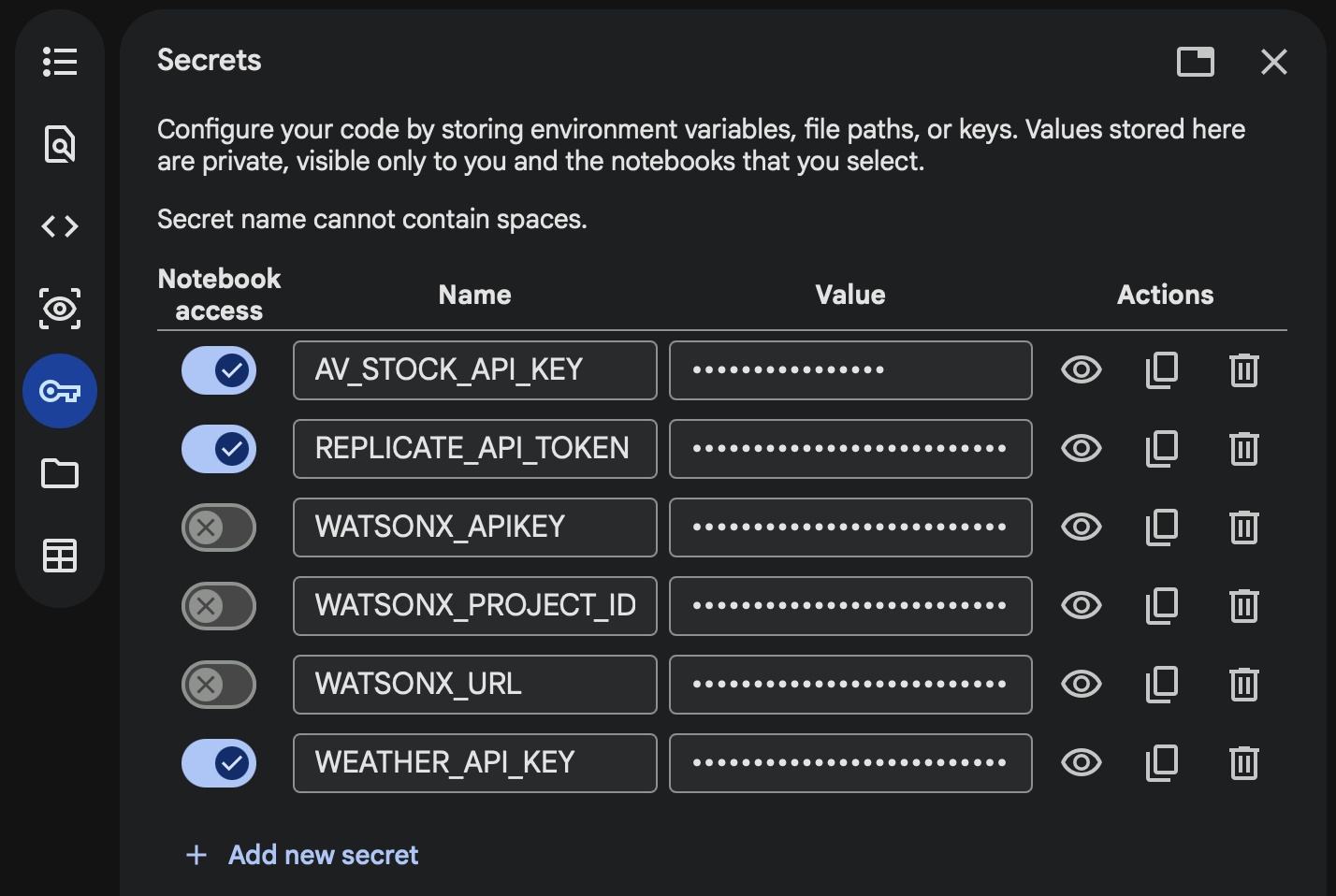
Add your Replicate API Token to the Colab Secrets manager to securely store it. Open Google Colab and click the key icon (Secrets) in the left panel. Click "Add new secret" and enter
REPLICATE_API_TOKENinto the name field and paste your token into the value field. Toggle the button on the left to allow notebook access to the secret.
Optional: Run Docling on a Hosted Service
By default the notebooks run Docling on your computer or Colab runtime, which downloads Docling's AI models and can be slow without a GPU. The document conversion, chunking, RAG, and token cost notebooks can instead send their conversions to a Docling service:
- Docling for IBM watsonx is IBM's managed Docling service. Start a free trial from the product page, then copy your service URL and API key.
- Any docling-serve instance works too, including the one you run in Lab 5.
Give the notebooks the service URL and API key:
export DOCLING_SERVICE_URL=<your_docling_service_url>
export DOCLING_SERVICE_API_KEY=<your_docling_api_key>
You can also put the two settings in a .env file in the docling-workshop folder.
Add DOCLING_SERVICE_URL and DOCLING_SERVICE_API_KEY to the Colab Secrets manager, the same way as REPLICATE_API_TOKEN, and allow notebook access.
Each notebook prints whether it converts locally or on the service. Leave DOCLING_SERVICE_URL unset to run Docling locally.